Know which zone each person works in, slot by slot

Create the zones for each site, such as a building site, a field or remote work, and every clock-in is recorded in its own. Plan them from the team grid and check hours per zone in the reports.

Try for free✓ 15 days free · No card required
Know which zone each person works in, slot by slotKnow which zone each person works in, slot by slotKnow which zone each person works in, slot by slot

Zones within each site

Create as many as you need, with a name and a colour, and switch them on at one or several sites: a building site, a field, a warehouse or a plant.

Remote work included

The Teletrabajo (remote work) zone comes ready-made at every site. You decide who can use it, person by person or for a whole site.

Chosen when clocking in

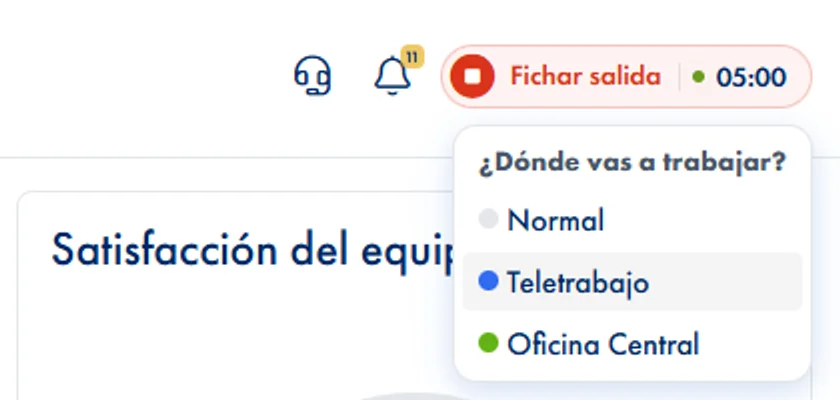
The entry is recorded at once and right after that the person picks the zone, on the web, in the app or on the medium widget. Each slot of the day can be in a different zone.

Planned from the team grid

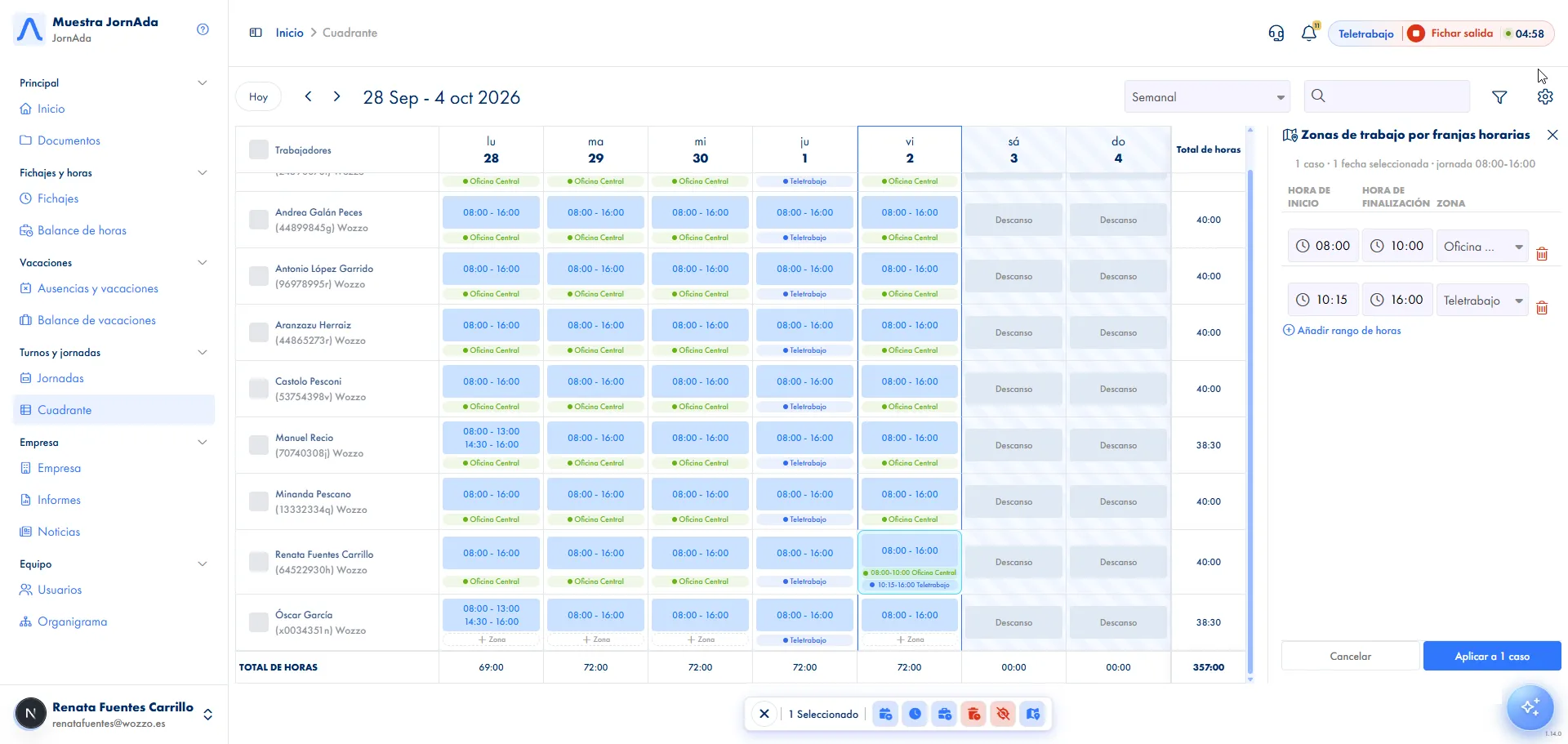
Set the zone for each day, or split the day into time slots each with its zone, for one person or for many at once.

Automatic when it is planned

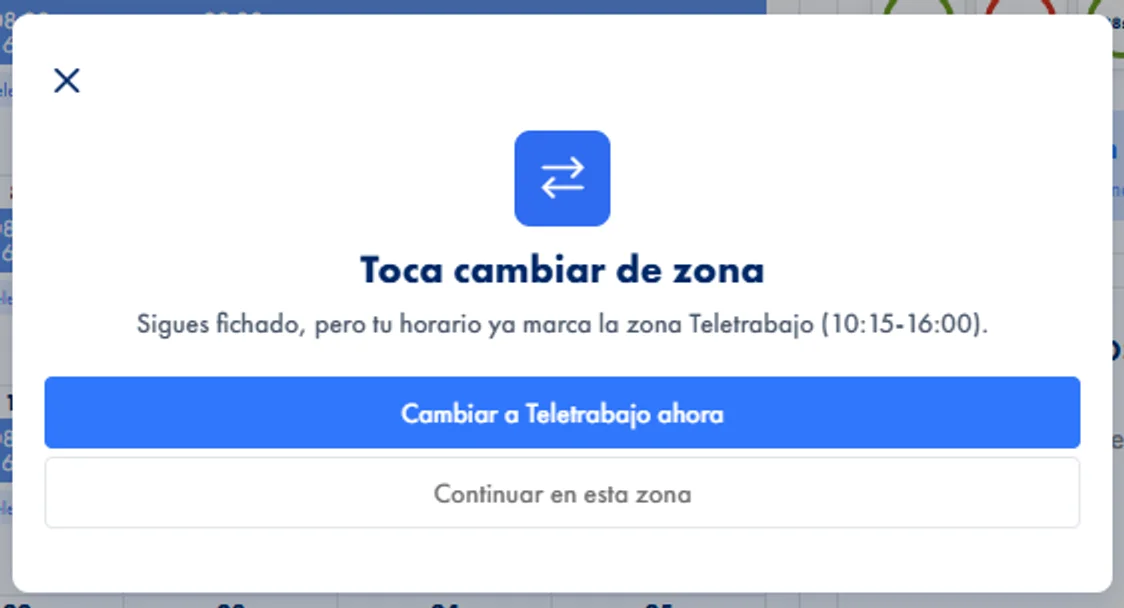
During a planned slot there is nothing to choose: the clock-in goes into its zone. And if the slot changes while the entry is open, a notice offers to switch zone with one tap.

Hours per zone in the reports

Reports add up the hours worked in each zone and can be filtered by zone. The clock-in list and its export show which zone each slot was in.

How it works

How work zones work in JornAda

  1. You create the zones

    In the company settings, with their name, their colour and the sites where they are active. Teletrabajo, for remote work, comes ready-made.

  2. You decide who sees each one

    By default everyone at the site sees it and you exclude whoever should not, one by one or the whole site. Teletrabajo works the other way round: you switch it on for whoever needs it.

  3. The person clocks in and chooses

    They tap clock in, the entry is recorded at once and then they choose between Normal and their zones. If they choose nothing, the slot stays as Normal.

  4. Or the zone is already set

    If a team leader has planned a slot from the team grid, the clock-in goes into that zone with a padlock, with no way to choose another.

Clock in first, choose afterwards

The clock-in time never waits for the choice: the entry is recorded on tap and the zone is applied to that slot right after. The zone is set when the slot opens and does not change when it closes, so someone who leaves and comes back can pick another one for the new slot.

Clock in first, choose afterwards

Time slots within the same day

A day can be split into several slots, each with its zone: 08:00 to 10:00 in Teletrabajo and 12:00 to 14:00 in Field 1. They cannot overlap or go beyond that person's workday, and the editor starts from the slots of their schedule, so you only need to set the zone.

Time slots within the same day

A notice when it is time to change zone

If someone is still clocked in when another slot starts, they get a notice to switch to the new zone with a single tap, which clocks them out and back in at once. If their last slot ends, they choose between normal clocking, staying in the same zone or clocking out.

A notice when it is time to change zone
Common questions

Frequently asked questions about work zones

Can't find your answer?

Write to us and we will help you sort it out.

Contact us

The site is the workplace, with its time zone and public holidays. The zone is the specific place where people work within it, such as a building site or a field, and one zone can be active at several sites.

Company admins, from the web. Team leaders with access to their team's grid can plan the zone for their people's days, but they cannot create zones.

With the Teletrabajo (remote work) zone, which exists at every site and cannot be deleted. By default nobody sees it: you switch it on for the people who work remotely, or for a whole site, and from then on they pick it when clocking in.

The slot stays as Normal, with no zone. The clock-in was already saved, so nothing is lost. And anyone without access to any zone clocks in directly, as always.

Yes: they clock out and back in choosing the new zone. When the zone is planned by slots, the slot-change notice does it in a single tap.

Yes. In the grid you select the days and assign the zone to all of them at once, or time slots if they all have the same schedule that day. Removing it works in bulk the same way.

In the reports, with a column adding up the hours worked in each zone and a filter to keep only the days clocked in a given one. In the clock-in list each slot shows its zone, also when exported.

Yes. Clocking in opens «Where are you going to work?» with the available zones, Home shows the zone of the open slot and the «Today's zones» block with what is planned. The medium widget shows the slot's zone and, for 15 seconds after clocking in, lets you pick it from Normal and your zones. The small one has no room for it: the slot goes into the planned zone or Normal.

No. The zone is chosen by the person or comes from the plan, and there is no radius controlling where they are. What is stored, as with any clock-in, is the location at the moment of clocking if location permission is granted.

Only those active at their site that they have access to. By default the whole site sees a zone and you exclude whoever should not; Teletrabajo is the other way round, only those switched on see it.

Record where people work, not just how long

Create the zones for each site, such as a building site, a field or remote work, and every clock-in is recorded in its own. Plan them from the team grid and check hours per zone in the reports.

Let's talk

Shall we set it up in 5 minutes?

Tell us what you need and we will reply today.

Contact Name

Company Name *

Email *

Phone

Phone number with country code. Example: +34612345678

Type your message here...